
1. I'm trying to use the Timer, but I can't log in, it shows "Connection error, please try again".
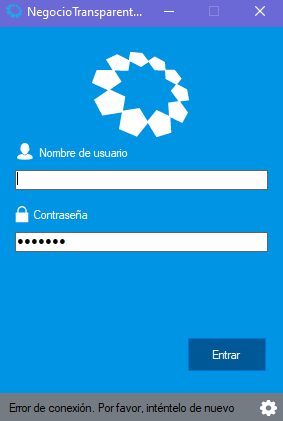
Solution:
The problem presented may be caused by some situations.
- Is a Proxy or VPN used to connect to the internet?
If a Proxy or VPN is used, proceed to log in to the Timer without using the Proxy.
- Is a program or extension used in the browser to block advertising (adblocker or ublock)?
Disable the adblocker and proceed to log in to the Timer.
2. After the installation of Timer, it asks me for a Username. Should I enter my email with which I registered?
Solution:
You must enter the mail registered in TransparentBusiness.
3. If I stop using my keyboard or mouse, does the Timer suspend and stop counting the time?
Solution:
After 6 minutes of inactivity the Timer stops, when you click or type something, it is activated automatically.
4. In the Timer, should we change for each project so that it considers the time used per project?
Solution:
Correct, it should be changed to the activity carried out at that time, in order to have greater control of the time spent on each task.
5. I sometimes work on two tasks in parallel. How do I record the 2 tasks?
Solution:
It is recommended to put enough detail in the activities to record them, the Timer can only measure the time of one task at a time. If they are not linked to each other, go registering one and then the other, if they are linked, take the most important task
6. When an activity must be carried out in the field, do you have the option of having the Timer through the cell phone, or does it have to be through the PC / Laptop? And would it have to be manual?
Solution:
The Timer works only on the laptop, it is not yet available for cell phones. To include that time, it must be done manually, it has to be done with the administrator of the team to which it belongs, how the part of the work in the field will be accounted for.
7. Suppose I am carrying out a task and the Timer is counting the time, but in the meantime I get a call that I must attend, therefore I stop using my computer for a few moments, in that case, does the Timer detect that? And pause time?
Solution:
After 6 minutes of inactivity the Timer stops, when you click or type something it will be activated automatically. The call time can be entered manually with your administrator.
8. How is the Timer and the tasks performed synchronized?
Solution:
It is automatic, you only need to check the time zone in the account settings. Follow this link to be able to change your time zone:
https://transparentbussiness.zendesk.com/hc/es-419/articles/360046848734-Cambiar-la-zona-horaria
9. When the Timer is paused, does it continue to take screens?
Solution:
No, the Timer only takes screenshots when taking time.
10. Is the Timer configurable to the working day (Monday-Friday, by day: entry, exit, exit to eat, entry to eat and exit) and on-call days on weekends and on-call days on holidays?
Solution:
No, the Timer can be used freely on any day and at any time.
11. Is there a link to download the Timer?
Solution:
There is no link, the Timer is downloaded from the platform in the drop-down menu where the photo appears.
Here is a link that could help you: Download the Timer
12. Can a task be paused to move on to another even though it is not finished, and then resume it?
Solution:
Yes, you must stop the Timer, select the new task and start the Timer again.
Here is a link that could help you: Timer Inactivity Mode
13. Are the tasks defined only by administrators or managers, and will they appear in the Timer so that we can choose which one to work on?
Solution:
Right, the tasks found in the Timer were defined by the administrator. In case any task is needed that is not in the Timer, the administrator should be contacted to be able to add it.
14. Can the Timer be activated with the same account on two computers?
Solution:
Yes, the Timer can be downloaded on different computers.
NOTE: For a good use of the timer, we recommend not logging using the same account on different computers at the same time.
Comments
0 comments
Please sign in to leave a comment.